reARK Template
reARK Template is the export infrastructure behind a REAPER 6 theme: Affinity Designer files, Symbols, Export Persona slices, pinklines and a few macros to survive hundreds of assets across 100%, 150% and 200% scales.
It helps you get started skinning from Reaper's Default 6.0, or change a few things from reARK.

It contains 2 Affinity Designer files, one for the toolbars and one for everything else. It's ready for 100% / 200% export; 150% requires additional work most of the time. There are also a bunch of macros and scripts included, which I've used to speed up the skinning and templating process.


Format
2 Affinity Designer files
Base
Reaper Default 6.0
Scales
100 / 150 / 200%
Includes
Template, macros, scripts
Before diving in
Let's talk about Affinity Designer, the problems, and the process used before you jump in.
Affinity Designer is a vector-based graphic editor. That is great for theming, since Reaper can use images at 3 different scales: 100%, 150% and 200%. Affinity Designer makes it easy to output those using 2 important systems: the Export Persona and Symbols. I'm mostly going to talk about 100% and 200% for now, since 150% is more complicated and needs more manual input.
01 / Export Persona
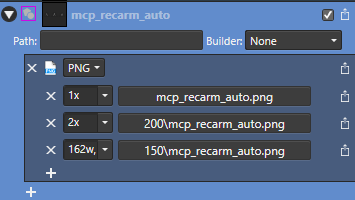
The Export Persona lets you choose how many files are exported from a single image. You can make it export an image at normal scale in the main folder, and another at x2 scale in the /200 folder, for example.

That is one of the rare occurrences you'll find in the project file, because I didn't have to do any specific adjustment for the 150% file: that asset didn't have any sharp elements and had a lot of curves (more on this later).
This is great for 100% / 200% images because doubling the number of pixels doesn't lead to any issues. But we do face a problem even with 200% images when using pinklines: those also get a x2 scale, so the pinklines no longer have 1 pixel of width but 2, breaking everything. To solve that, we need a specific image for 200% files that use pinklines, since a x2 scale through the Export Persona won't work. To make things easier, we'll use Symbols.
02 / Symbols
Symbols is a system in Affinity Designer that syncs multiple elements at once: if you modify something on one image, the change takes effect on every image that uses that Symbol. The great thing is you can scale a Symbol without scaling all the others, which means you can make a Symbol for your normal scale, apply a x2 scale, and now everything you do on one or the other stays synced.

Note that borders and strokes of some elements need "scale with object" checked, otherwise they stay at their original scale when scaled up, unlike everything else.
With symbols that scale up with no loss, all we need now is to manually add pinklines in another component of the image (not the symbol) for 100% and 200%.
Symbols are your best friends. I should have made more of them as I went, but I discovered their strength while making the template. You can even have symbols inside symbols. Don't bother trying to keep them organized, Affinity Designer offers no tools to order them. If you know something is going to be repeated, an icon, a background, a complete image, even pinklines, give it a name and make it a symbol.
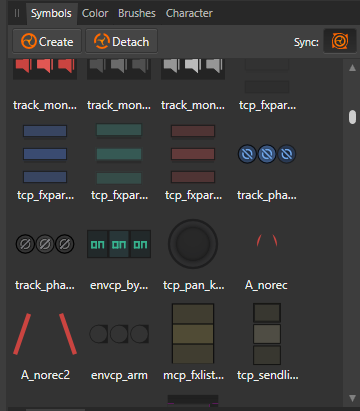
Sometimes you'll want to color a symbol but you can't, because the color would change everywhere else. One way around it is to put the symbol in a group, then color that group with a Color Adjust FX.
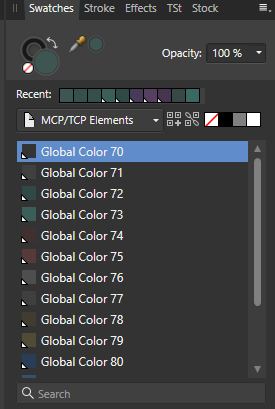
Another way to manipulate a lot of elements at once is "Global Colors" from the Swatches tab. You define colors that are used and linked across your whole project. I honestly didn't use enough of those, but you can already change a lot of the background colors and some of the main colors for FX, envelopes, and so on.

03 / The 150% problem
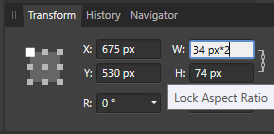
The Export Persona won't even export 150% to begin with: you have to manually input a specific width and height, because multiplying an odd number by 1.5 gives a decimal (e.g. 123 x 1.5 = 184.5) and image exports can't have decimals. And even using vectors, some pixels get stretched awkwardly when scaling by x1.5.
Besides that, a lot of things break when applying a x1.5 scale, even with symbols. It's mostly an issue for sharp, square shapes, which I used a lot. Circles aren't as problematic because of how they obey the pixel grid. You may notice I drew a lot of the text by hand, pixel by pixel: that is what makes some elements really sharp. With a 1.5 multiplier that sharpness goes out the window, because that one sharp pixel bleeds halfway into another.

It's hard to describe, but basically, if you want sharp results and to avoid aliasing, 150% images need manual adjustments, which take time.

But here, since there are pinklines, I had to export all of them. I used symbols to make it easier, but I had to unlink the 150% one to fine-tune the pixel placements and avoid a 1.5 pixel border or stroke.
04 / Automation
I've set everything up so it's easy to adjust and ready to export in the Export Persona. Images are already named with their corresponding folder type (150 / 200 when needed).
To speed things up I used various macros I made with Pulover's Macro Creator, an interface to design AutoHotkey macros and scripts. I mostly used it for bulk-renaming a lot of assets quickly, since Affinity doesn't have anything for that. You probably won't need it (it could be useful for automating something like making knobs), but I recommend it anyway, it's handy outside of Affinity for any repetitive task. I've included the few I used in the archive.

Be careful with Export Persona slices, sometimes they take the wrong size because of a shadow or some random bug and you'll have to adjust it manually (which takes more time, but honestly it's better that way).
You can import image files even without an extension (.png) in Affinity Designer. With a tool like Bulk Rename Utility, you can import all the Reaper images into Affinity, then quickly CTRL+C each image name, make a group, and CTRL+V the name into the group name for export. This is what I wish I'd done on the main reARK template, it would have saved my script the hassle of removing .png from each filename (I used this method for the toolbars).
You'll also notice I inserted the folder handle for /150 and /200 in front of a lot of groups to make export easier (that way you don't have to indicate a specific folder in the Export Persona, which takes much more time to set up).

Here is a video, recorded at normal speed, of one of the macros I made with Pulover's Macro Creator. It was used to create the groups mentioned above.
Changelog
Template release / 01.02.2023
- Fully compatible Reaper 6.0 Affinity template.
- Lot of symbols to speed up the theming workflows.
- Pinklines on all elements.
- Export ready for 100% / 150% / 200%.
- Specific template for toolbars (much less advanced, but the pre-production is done at least, only needs some help for the vector images).
Unfinished
- Clean-up of the template and general improvements to make it easier to use.